Write SQL, Run It, Fix It: In-IDE Query Execution with DinoAI
Analytics engineers have always run exploratory SQL outside their dbt™ projects — in a notebook, a SQL client, a browser tab. That work validates assumptions, drives test coverage, and debugs failures, but it rarely makes it back into the codebase in a structured way. DinoAI's SQL Execution Tool runs queries directly against your connected warehouse from inside the Paradime IDE, interprets the results, and feeds them straight back into your development workflow — profiling datasets, generating tests from real data, and closing the loop between writing code and trusting it.

The gap between writing dbt™ models and trusting them has always been the same thing: you have to leave your editor to verify your work. Open a query console, switch warehouse connections, run some SQL, interpret the output, come back, make a change, repeat. For every model you build, there's a parallel track of exploratory SQL happening somewhere outside your project — in a notebook, a SQL client, or a browser tab — that never makes it back into tested, documented code.
DinoAI's SQL Execution Tool closes that gap. It lets DinoAI run SQL directly against your connected data warehouse from inside the Paradime IDE, interpret the results, and act on them — profiling datasets, generating dbt™ tests from real data, validating model output, and feeding findings back into your development workflow, all without a context switch.
What the Tool Actually Does
The SQL Execution Tool runs SQL statements against your connected warehouse and returns results directly to DinoAI to reason over. It's not a read-only metadata explorer — it executes queries and works with real data.
Specifically, it:
- Runs any SQL statement against your connected data warehouse
- Returns results capped at 1,000 rows for DinoAI to interpret
- Feeds output back into the development loop — DinoAI can turn query results into tests, documentation, model rewrites, or follow-up queries
The 1,000-row cap is worth understanding: it's there to keep the feedback loop fast. For profiling and validation work, you're almost never looking at raw rows anyway — you're looking at aggregates, distributions, and distinct values. DinoAI handles that translation, so the limit rarely matters in practice.
Note: For exploring warehouse metadata — schemas, table definitions, column types — use the Warehouse Tool instead. The SQL Execution Tool is for running queries against actual data.
How DinoAI Changes the SQL Validation Loop
The standard dbt™ development cycle looks something like this:
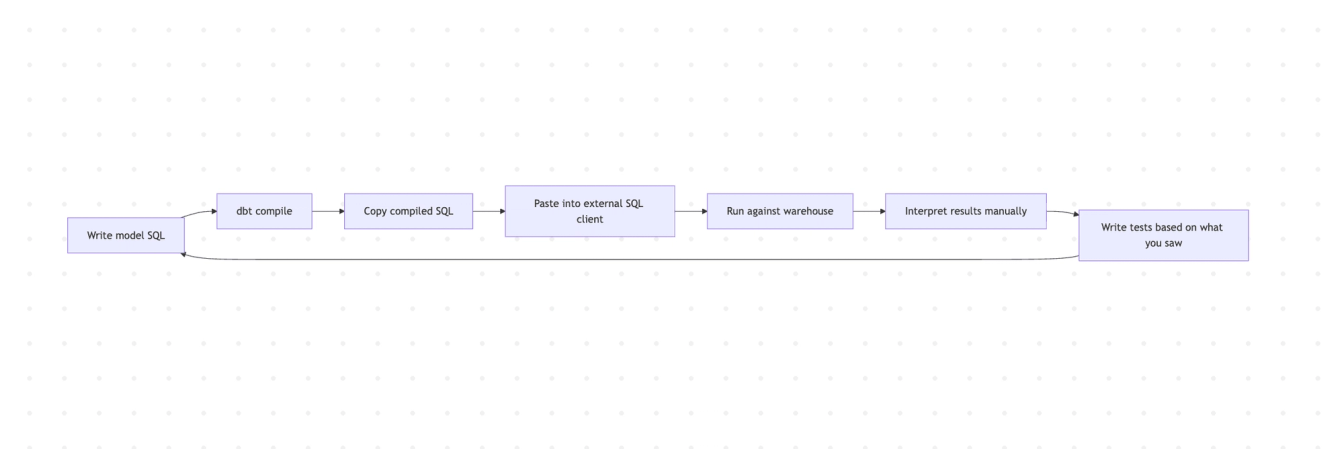
Every handoff in that chain is friction. With the SQL Execution Tool, DinoAI handles the execution and interpretation step inline:
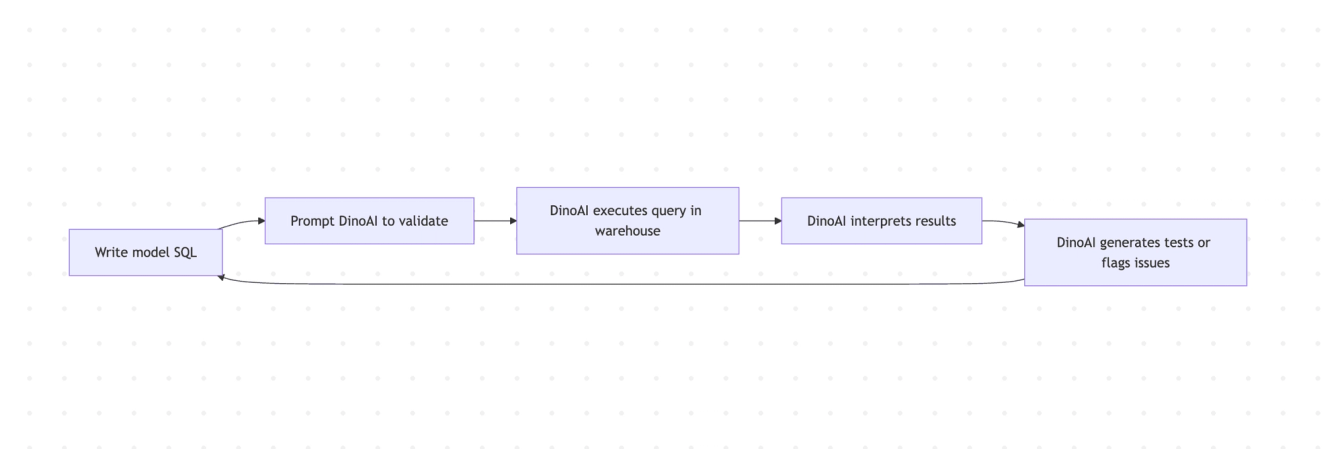
The loop shortens because execution and reasoning happen in the same context as development.
Workflow 1: Profiling a Dataset Before Building on Top of It
Before writing a dbt™ model on top of a raw table, it pays to know what's actually in it. Null rates, value distributions, row counts, and min/max ranges tell you where the data quality risks are before they surface as test failures or incorrect downstream metrics.
Profile analytics.raw_events — check row count, null rates per column,
and min/max for all numeric and timestamp columns.
Flag any columns with more than 5% nulls.
DinoAI writes and executes the profiling queries, summarizes the findings per column, and flags anything that warrants attention before you build. If a column has 40% nulls and you were planning to use it as a join key, better to know now than after the model is in production.
This is also useful when working with a table you didn't build — a raw source from an external tool or a table handed over from another team. A one-prompt profile gives you the context you'd otherwise spend 20 minutes assembling manually.
Workflow 2: Generating dbt™ Tests from Real Data
Writing accepted_values tests by hand means guessing what values exist in a column, or running a query to find out, then manually transcribing the results into YAML. DinoAI can do that entire loop in one step.
Find all distinct values in the status column of analytics.orders.
Generate an accepted_values test for it in schema.yml.
DinoAI queries the column, reads the distinct values, and writes the corresponding test block directly into your schema.yml. The test is grounded in what the data actually contains, not what you assumed it would contain.
This extends to other test types too:
Check the range of order_amount in analytics.orders.
If there are negative values, generate a dbt™ test to flag them.
DinoAI runs the range query, surfaces the findings, and turns them into a concrete test — whether that's a not_null, a custom accepted_values, or a threshold-based test written as a macro.
Workflow 3: Validating Model Output After a dbt build
Running dbt build tells you whether your SQL compiled and your tests passed. It doesn't tell you whether the results make sense. A model can pass all its tests and still produce wrong output — if the tests weren't comprehensive enough, or if the logic has a subtle bug that tests don't catch.
Run this query against the mart layer and check whether the revenue totals
match expectations — the sum should be between 1M and 5M for last month.
Flag any date ranges with unexpectedly low row counts.

SELECT date_trunc('month', order_date) as month,
       sum(revenue) as total_revenue,
       count(*) as order_count
FROM analytics.fct_revenue
WHERE order_date >= dateadd('month', -3, current_date)
GROUP BY 1
ORDER BY 1
DinoAI executes the query, reads the results, and flags anomalies — months with totals outside the expected range, gaps in coverage, or distributions that don't match prior patterns. It's the kind of sanity check that usually happens informally, if at all, and that DinoAI can systematize across your model layer.
Workflow 4: Debugging a Failing dbt™ Test
When a dbt™ test fails, the error tells you that rows violated a constraint — not which rows, or why. The SQL Execution Tool lets DinoAI query for the actual offending records directly.
The not_null test on customer_id in fct_orders just failed.
Run a query to find how many rows have null customer_id,
show me a sample of 10, and check whether the nulls are concentrated
in a specific date range or order_source.
DinoAI executes the diagnostic queries, reads the results, and tells you whether this is a data quality issue in the source, a logic bug in the model, or a pattern tied to a specific condition — like nulls appearing only for orders from a particular channel after a certain date. That context is what turns a failing test from a blocker into a fixable problem.
Workflow 5: Full Loop — Exploration to Committed Test
For new models, DinoAI can chain the SQL Execution Tool with the File System Tool and Terminal Tool to take a dataset from unexplored to tested and committed in a single workflow.
1. Profile analytics.stg_payments — null rates, distinct values for status and payment_method,
   and row count by created_date for the last 90 days.
2. Based on what you find, generate appropriate dbt™ tests in schema.yml.
3. Run dbt test --select stg_payments to validate.
4. If tests pass, commit the schema.yml changes to a branch called feat/stg-payments-tests.
DinoAI runs the profile queries, reads the results, writes the tests, validates them against the warehouse, and commits — taking a model from zero test coverage to committed, warehouse-validated tests without the back-and-forth between tools.
A Few Things Worth Knowing
Ask DinoAI to interpret results, not just return them. The tool is most useful when you ask DinoAI to reason over output rather than just display it. "Run this query and flag anomalies" gets you analysis. "Run this query" gets you rows.
Use it for test generation by default. Any time you're exploring a new table or validating a new model, use the SQL Execution Tool to drive your test coverage. Tests written from real data are more reliable than tests written from assumptions.
Combine with the Terminal Tool for a complete validation loop. Run dbt build via the Terminal Tool to compile and test your models, then use the SQL Execution Tool to query the results directly. The two tools together cover both the dbt™ layer and the warehouse layer.
If results hit exactly 1,000 rows, add aggregations. The result cap is per query. If you're investigating a large table and getting exactly 1,000 rows back, ask DinoAI to rewrite the query with aggregations or tighter filters — you'll get more meaningful results than a truncated raw row set.
Pair with the Snowflake Query Analysis Tool for performance work. After using the SQL Execution Tool to validate that a rewritten query returns correct results, use the Snowflake Query Analysis Tool to confirm the performance improvement by analyzing the new query ID.
Getting Started
The SQL Execution Tool is available inside DinoAI's Agent Mode in the Paradime Code IDE right panel. It's currently in Private Preview — reach out to support@paradime.io to request access.
Full tool docs: SQL Execution Tool · Warehouse Tool · Terminal Tool · Agent Mode
Related reading: From Slow Query to Root Cause: Snowflake Performance Debugging with DinoAI · From Google Workspace to dbt™ Code: AI Workflows with DinoAI
FAQ
What is the DinoAI SQL Execution Tool? It's a DinoAI capability that runs SQL queries directly against your connected data warehouse from inside the Paradime IDE, then interprets the results to support your dbt™ development workflow — profiling datasets, generating tests, validating model output, and debugging failures.
What's the difference between the SQL Execution Tool and the Warehouse Tool? The Warehouse Tool explores metadata — schemas, table definitions, column types. The SQL Execution Tool runs actual queries against real data. Use the Warehouse Tool to understand structure; use the SQL Execution Tool to inspect what's in the data.
Is there a row limit? Yes — results are capped at 1,000 rows per query. For most validation and profiling work, aggregation queries stay well within this limit. If you hit the cap on a raw row query, add filters or aggregations.
Can DinoAI write and run its own SQL, or do I have to write the queries? Both. You can provide SQL directly, or describe what you want to check and let DinoAI write the queries, execute them, and interpret the results.
Can DinoAI automatically generate dbt™ tests from query results? Yes. Ask DinoAI to find distinct values, null rates, or value ranges in a column and convert the findings into dbt™ test YAML — it will write the tests based on what it actually finds in the data.
What warehouses does the SQL Execution Tool support? It works with your connected data warehouse configured in Paradime. Check the integrations documentation for the full list of supported warehouses.
Interested to Learn More? Try Out the Free 14-Days Trial
One AI-native workspace to build, ship, and monitor dbt™ — without the tool sprawl.
More Articles
Join industry leaders winning with DinoAI agents
Data engineers and analysts at the most AI-native startups and enterprises use Paradime's DinoAI agents everyday to become market leaders.