Notion Is Your Documentation Layer: DinoAI Makes It Your Development Context
Analytics engineering teams already live in Notion — storing sprint plans, technical specs, data modeling standards, and inline feedback from stakeholders. DinoAI's Notion Tool pulls that knowledge directly into your development workflow: search your workspace, fetch page content, extract comments, and act on them — turning Notion pages into dbt™ models, tests, and documentation without the manual translation step.

Fabio Di Leta
·
4
min read
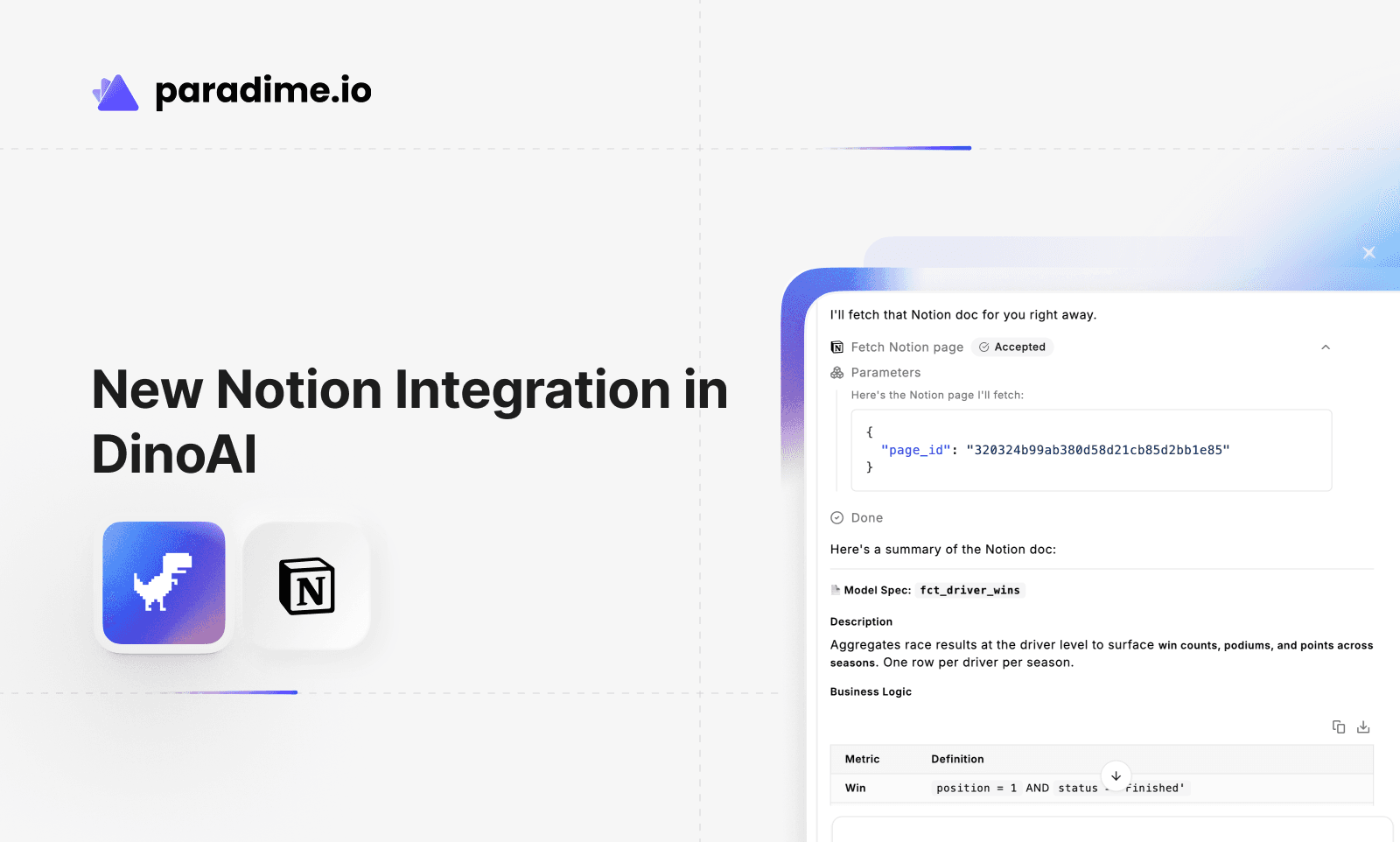
Your Specs, Docs, and Feedback Are Already in Notion: DinoAI's Notion Tool
Analytics engineering teams already live in Notion. Sprint plans live in databases, technical specs are documented in pages with toggles and callouts, data modeling standards are maintained in a shared wiki, and stakeholder feedback arrives as inline comments on requirement pages. By the time you sit down to implement the work, you've already done a round of context-gathering — reading the spec, checking the comments, deciding what needs to be built — before a single line of SQL gets written.
That translation step is invisible overhead. DinoAI's Notion Tool pulls that context directly into the development workflow. Search your Notion workspace for the right page, fetch its content, extract comments and feedback, and DinoAI acts on it — scaffolding models, writing tests, generating documentation, and closing the loop from spec to shipped dbt™ code without the manual handoff.
Requires integration. The Notion Tool needs a connected Notion account before use. See the Notion integration setup guide for instructions.
What the Notion Tool Does
The Notion Tool brings your team's knowledge base into the Code IDE through three core operations:
Search Notion queries your workspace by text, returning matching pages and databases with their IDs, titles, types, and URLs. You can filter by content type (page or database) and limit results to surface exactly what you need without manual hunting.
Fetch Page Content retrieves the full structured content of a specific page by ID or URL. It converts Notion's block-based content — headings, lists, callouts, toggles, tables — into clean markdown that DinoAI can reason over and act on.
Get Page Comments fetches all feedback on a page, separating page-level comments from inline comments attached to specific blocks. This surfaces stakeholder notes, review feedback, and open questions before you start building.
Together, they cover the full documentation layer that data teams maintain in Notion: requirements in project pages, standards in team wikis, feedback in comment threads.
How DinoAI Changes the Notion-to-Code Workflow
Without the Notion Tool, the path from spec to implementation looks like this:

Every step between A and H involves context-switching and manual interpretation. With the Notion Tool, DinoAI handles the translation:

The documentation context and the implementation context become the same context.
Workflow 1: Notion Spec → dbt™ Models and Documentation
The most direct use: point DinoAI at a Notion page containing technical specifications, and it builds the corresponding dbt™ models with full documentation. This works best when your Notion pages use structured content — headings for sections, callouts for business logic, tables for field definitions.
DinoAI searches your workspace, finds the relevant page, parses the structured content, and uses it to scaffold models and generate schema YAML. Field descriptions in the Notion page become description entries. Business logic in callouts becomes model-level documentation. The result is a PR where the code and docs are grounded in the spec your team already agreed on.
This mirrors the Google Docs workflow for teams using Notion as their documentation platform — same pattern, different source of truth.
Workflow 2: Extracting Data Modeling Standards from Your Notion Wiki
Many teams maintain a Notion wiki with data modeling standards, naming conventions, testing requirements, and code patterns. DinoAI can fetch these pages and apply the rules directly to your dbt™ project — no need to memorize the standards or look them up mid-development.
DinoAI retrieves the standards page, extracts the documented rules, and applies them: renaming models to match conventions, adding required tests, updating YAML structure. The standards your team wrote in Notion become enforceable patterns rather than aspirational guidelines.
For teams with .dinorules files, this workflow complements those repository-level standards — Notion handles team-wide conventions, .dinorules handles project-specific patterns.
Workflow 3: Incorporating Stakeholder Feedback from Notion Comments
When stakeholders review a spec and leave inline comments — requesting field additions, questioning logic, or flagging missing requirements — that feedback often gets lost in the handoff to implementation. DinoAI can fetch those comments and incorporate them before you build.
DinoAI retrieves both page-level and inline comments, identifies unresolved feedback, surfaces it for your review, and adjusts the build plan accordingly. Field additions mentioned in comments become columns in the model. Logic questions become documentation notes. The final implementation reflects the full conversation, not just the original spec.
This is especially valuable for pages with long comment threads where feedback has accumulated over multiple review rounds — DinoAI consolidates it all into a single actionable summary.
Workflow 4: Search → Fetch → Build (End-to-End Documentation-Driven Development)
For teams that document everything in Notion before building anything in dbt™, this workflow closes the full loop: search for the right page, fetch its content, and build the implementation — all in one DinoAI prompt.
DinoAI searches your workspace, identifies the relevant page (potentially filtering by tags or database properties if your Notion structure supports it), fetches the full spec, and builds the entire dbt™ implementation. The search step ensures you're working from the most current version of the spec, even if the page title or location has changed.
This workflow works particularly well for teams that organize Notion pages in project databases with properties like "Status," "Owner," or "Sprint" — DinoAI can search and filter based on those properties to find exactly what you need.
Workflow 5: Notion Page as Single Source of Truth for Model Updates
When a data model needs to change, the change typically starts in Notion: someone updates the spec page to reflect the new requirements, adds comments with context, and assigns the work. DinoAI can read that updated page and apply the changes to the existing dbt™ models.
DinoAI retrieves the updated spec, compares it against the current model, identifies the diff (new columns, changed logic, removed fields), and applies the changes. The Notion page remains the source of truth — dbt™ code stays in sync with it automatically.
For teams practicing documentation-first development, this ensures that the code always reflects the most recent agreed-upon spec, and changes are traceable back to the Notion page that mandated them.
A Few Things Worth Knowing
Page structure drives output quality. DinoAI works best with well-structured Notion pages — clear headings, logical sections, tables for field definitions, callouts for important notes. Pages that are large blocks of unformatted text are harder to parse and may produce less accurate results. Investing in structured documentation pays back directly in DinoAI's ability to interpret it correctly.
Share pages with the connected account. The Notion Tool can only access pages that are shared with the Notion account connected in Paradime. If DinoAI can't find a page you know exists, check the sharing settings — it might be private or restricted to a workspace the integration doesn't have access to.
Use page IDs or URLs, not just titles. While search works well for finding pages, if you already know the page you want, providing the page ID or full URL is more reliable. Page IDs are in the Notion URL — for https://notion.so/workspace/Page-Title-1abc..., the ID is 1abc....
Comments surface unresolved feedback. When fetching comments, DinoAI separates page-level comments from inline comments, making it easy to see whether feedback applies to the entire spec or to a specific section. Use this to prioritize which comments to address before building.
Combine with Terminal Tool for validation. After DinoAI builds models based on a Notion spec, use the Terminal Tool to run dbt build and validate the implementation before opening a PR. Notion provides the requirements; the Terminal Tool confirms they're met.
Cross-reference with Jira or Linear for complete context. Many teams link Notion pages to Jira tickets or Linear issues. When both exist, give DinoAI both sources — the Notion page for detailed specs, the Jira/Linear ticket for task status and acceptance criteria. The combined context is more complete than either alone.
Getting Started
The Notion Tool is available inside DinoAI's Agent Mode in the Paradime Code IDE right panel. It requires a connected Notion account — see the setup guide below.
Full tool documentation: Notion Tool
Integration setup: Connecting Notion to Paradime
Related tools: Terminal Tool · GitHub PR Management Tool · Jira Tool · Linear Tool · Agent Mode
Related reading: From Google Workspace to dbt™ Code: AI Workflows with DinoAI · Your Tickets and Specs Are the Missing Context: Jira and Confluence in DinoAI
FAQ
What is the DinoAI Notion Tool?
It's a DinoAI integration that searches your Notion workspace, fetches page content and comments, and brings that context directly into the Code IDE — turning Notion specs into dbt™ models, tests, and documentation without manual translation.
What can the Notion Tool do?
It can search your Notion workspace by text query, fetch full page content including structured blocks and metadata, and retrieve all comments (both page-level and inline) to surface stakeholder feedback before you build.
Can DinoAI read Notion databases?
The Notion Tool can search and identify Notion databases, but it's optimized for reading page content. For database rows and properties, consider exporting to a structured format or pointing DinoAI at individual pages within the database.
How does DinoAI handle nested Notion content?
DinoAI converts Notion's block-based content (headings, lists, toggles, callouts, tables) into clean markdown. Nested structures like toggle lists and indented blocks are preserved in the markdown representation, making them interpretable.
Can I use the Notion Tool with the Jira or Linear tools?
Yes — and that's a powerful combination. Many teams link Notion pages to Jira tickets or Linear issues. Give DinoAI both sources to get the complete context: Notion for detailed specs, Jira/Linear for task tracking and acceptance criteria.
What Notion content types work best?
Pages with clear structure: headings for sections, callouts for important notes, tables for field definitions, lists for requirements. Large blocks of unformatted text are harder for DinoAI to parse accurately.
How do I find a Notion page ID?
The page ID is in the Notion URL. For https://notion.so/workspace/Page-Title-1abc2def3ghi, the ID is the string after the last dash: 1abc2def3ghi. You can also copy the page link and extract the ID from it.
What if DinoAI can't find my Notion page?
Check that the page is shared with the Notion account connected in Paradime. Private pages or pages in workspaces the integration doesn't have access to won't appear in search results.
Does DinoAI update Notion pages automatically?
No — the Notion Tool is read-only. DinoAI fetches content and comments but doesn't write back to Notion. Changes flow one direction: Notion → dbt™ code.
Can DinoAI resolve conflicting information in Notion comments?
DinoAI surfaces the comments and can identify conflicting feedback, but it will ask for clarification rather than making assumptions. Review the comment summary before proceeding with the build.


