Introduction to Paradime
Paradime is an AI-powered workspace (aka Cursor for Data) that consolidates the entire analytics workflow into one platform. It addresses key problems analytics teams face: drowning in tabs, jumping between multiple tools (VSCode, dbt Cloud™, Airflow, Monte Carlo, Looker), burning warehouse credits on inefficient queries, and critical pipelines failing with no clear owner. With features like DinoAI co-pilot, Paradime Bolt orchestration, and column-level lineage, teams achieve 50-83% productivity gains and 20%+ reductions in warehouse spending. Companies like Tide, Customer.io, and PushPress use Paradime to ship 10x faster with one consolidated workspace.
What Are dbt Sources and Why They Matter
Understanding dbt Sources
dbt sources allow you to name and describe the data loaded into your warehouse by your Extract and Load tools. By declaring tables as sources in dbt, you can select from source tables using the {{ source() }} function, test assumptions about your data, and calculate source data freshness.
Benefits of Using Sources in dbt
Lineage Tracking: Creates dependencies between models and source tables, defining your data lineage
Testing and Documentation: Add data tests to sources and generate documentation automatically
Freshness Monitoring: Monitor source data freshness to ensure healthy pipelines and define SLAs
Better Organization: Override poorly named schemas or tables with logical naming conventions
Build Optimization: Build models based on source freshness, eliminating wasted compute on unchanged data
Prerequisites for Setting Up Your dbt Project
Before starting, ensure you have:
Paradime developer or admin permissions
Access to a Git repository (existing or new)
A connected data warehouse in Paradime
Basic understanding of dbt concepts
Step 1: Connect Your Git Repository
For Existing dbt Repositories
Verify your dbt repository is properly connected to Paradime through the repository settings. Paradime supports GitHub, GitLab, Bitbucket, and other Git providers.
For New Repositories
If you don't have an existing dbt project, you'll create a new repository during the initialization process in the next step.
Step 2: Initialize Your dbt Project with Paradime CLI
Using the paradime repo init Command
Open the terminal in your Paradime workspace and run:
What Happens During Initialization
The command will:
Create a new branch called 'initialize-dbt-project'
Prompt you to name your dbt project (e.g., demo_project)
Set up the dbt project skeleton with necessary folders and files
Generate the dbt_project.yml configuration file
Offer to generate sources.yml files
Naming Your Project
Choose a descriptive project name that reflects your organization or use case. This name will be used throughout your dbt project configuration.
Step 3: Generate Sources from Your Data Warehouse
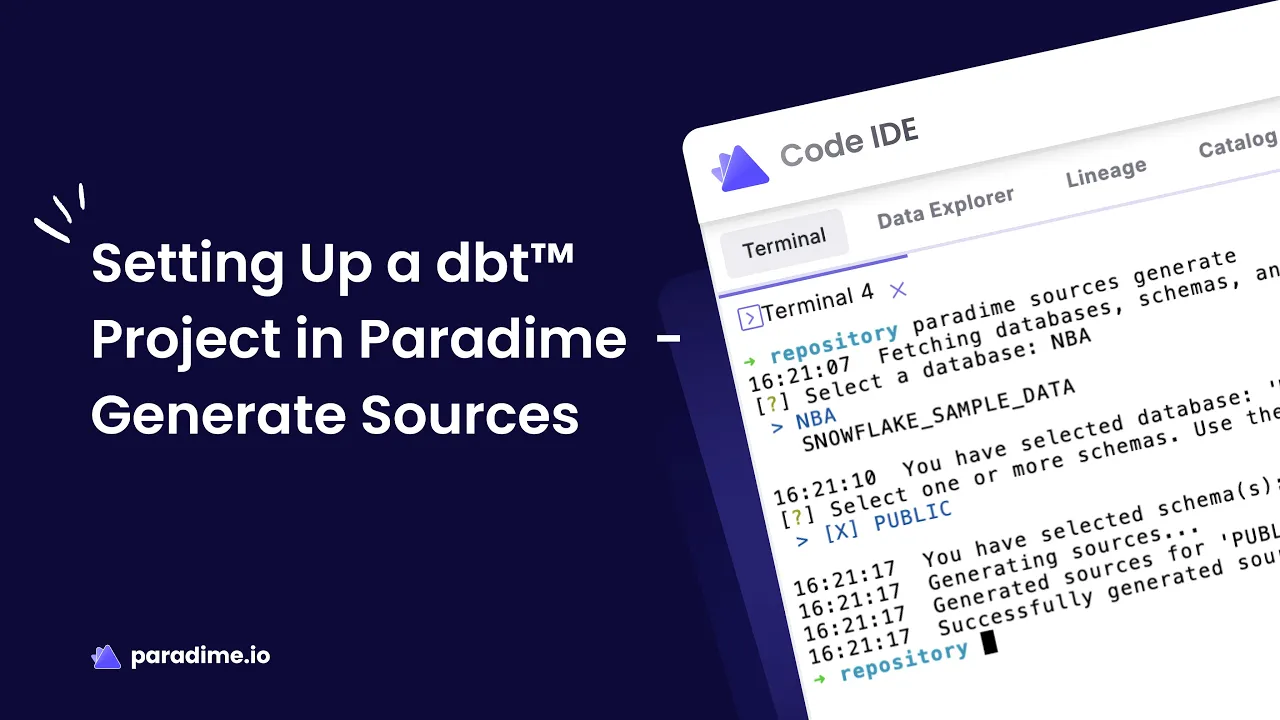
Automatic Source Generation During Init
When prompted during paradime repo init, you can choose to generate sources immediately:
Select a Database: Use arrow keys to navigate and press Enter to select (e.g., NBA, ANALYTICS)
Select Schemas: Use arrow keys to navigate, press
>to select multiple schemas, then Enter to confirm (e.g., Public, Staging)Sources Created: Paradime generates sources.yml files with the naming convention
sources_.yml
Understanding Generated Sources Files
The generated sources.yml file includes:
Version specification
Source name and database information
Schema definitions
Table and column names with data types
Proper YAML formatting ready for dbt
Customizing Source File Names
You can rename the generated files to match your team's naming conventions, such as:
_sources.ymlsrc_.ymlAny convention that suits your project structure
Step 4: Using DinoAI to Create or Update Sources
When to Use DinoAI for Source Generation
DinoAI is particularly useful when:
You skipped source generation during project initialization
New tables have been added to your data warehouse
You're performing data migrations or schema updates
Your source data structure has changed
Prompting DinoAI to Generate Sources
Simply ask DinoAI in natural language:
How DinoAI Works Behind the Scenes
Warehouse Connection: DinoAI connects to your data warehouse and scans available schemas and tables
Metadata Retrieval: It retrieves column information including data types
Rules Application: If configured, applies your .dinorules preferences
File Generation: Creates a properly formatted sources.yml file
Benefits of Using DinoAI for Sources
Time Savings: Reduces a 30+ minute manual task to seconds
Accuracy: Eliminates typos and formatting errors
Maintainability: Makes it easy to keep sources up-to-date
Completeness: Captures all tables and columns without missing anything
Updating Existing Sources with DinoAI
When updating existing sources with new tables:
Select your existing sources.yml file to provide context
DinoAI understands your project structure
It preserves existing documentation
Only new tables are added to the file
Step 5: Working with Sources in Your dbt Models
Using the source() Function
Once sources are defined, reference them in your models using:
Creating Dependencies
The {{ source() }} function automatically creates a dependency between your model and the source table, enabling:
Proper DAG (Directed Acyclic Graph) visualization
Lineage tracking from source to BI tools
Build order optimization
Step 6: Version Control and Deployment
Committing Your Changes with Git Lite
Paradime's Git Lite feature simplifies version control:
Review your changes in the Git interface
Write a descriptive commit message (or use DinoAI's 'Write Commit' feature)
Commit your changes
Push to your remote repository
Creating a Pull Request
Open a Pull Request from your 'initialize-dbt-project' branch
Request review from team members
Address any feedback or comments
Merge the PR into your main branch
Best Practices for Version Control
Write clear, descriptive commit messages
Keep commits focused on specific changes
Review generated code before committing
Use branch naming conventions
Document significant changes in PR descriptions
Advanced: Testing and Documenting Sources
Adding Tests to Sources
Define tests in your sources.yml file:
Documenting Sources
Add descriptions to help your team understand the data:
Best Practices for Managing Sources in Paradime
Organization and Structure
Group related sources in the same file
Use consistent naming conventions
Organize sources by data domain or source system
Keep source files in a dedicated folder (e.g.,
models/staging/sources/)
Maintenance and Updates
Regularly update sources when warehouse schema changes
Use DinoAI to quickly add new tables
Review and update source freshness settings
Document breaking changes in version control
Team Collaboration
Establish team conventions for source naming
Document source ownership and data SLAs
Use .dinorules to enforce consistency
Review source changes in Pull Requests
Troubleshooting Common Issues
Connection Problems
If Paradime can't fetch databases and schemas:
Verify your data warehouse connection is active
Check warehouse permissions for metadata access
Ensure your Paradime workspace has the correct credentials
Source Not Found Errors
If dbt can't find your sources:
Verify the database, schema, and table names match exactly
Check for case sensitivity issues
Ensure sources.yml is in the correct location
Validate YAML formatting
DinoAI Not Generating Sources
If DinoAI fails to generate sources:
Check that your warehouse connection is established
Verify you have read permissions on information schemas
Provide more specific context in your prompt
Try selecting existing files for context
Conclusion
Setting up a dbt project in Paradime and generating sources is streamlined through automation and AI assistance. By leveraging Paradime's CLI and DinoAI capabilities, you can reduce setup time from hours to minutes while ensuring accuracy and consistency. Whether you're initializing a new project or maintaining an existing one, these tools help you establish a solid foundation for your analytics engineering workflow.
Ready to accelerate your analytics engineering? Start with proper source configuration and let Paradime handle the heavy lifting, so you can focus on building transformations that deliver business value.


