Introduction
Paradime is an AI-powered analytics workspace that consolidates your entire data workflow into one unified platform. With features like DinoAI co-pilot for SQL generation, Paradime Bolt for production-grade dbt™ orchestration, and Paradime Radar for monitoring with column-level lineage, teams achieve 50-83% productivity gains and 20%+ warehouse cost reductions. Paradime eliminates tool sprawl by integrating seamlessly with Looker, Tableau, and your modern data stack.
What Are Environment Variables in Paradime Bolt?
Understanding Bolt Schedule Environment Variables
Environment variables in Paradime Bolt are configuration settings that allow you to customize dbt™ and Python data pipelines in production without hardcoding sensitive information. These variables enable you to manage secrets, database connections, and runtime settings securely across different environments.
Think of environment variables as secure containers for your configuration data. Instead of writing your database password directly into your code (where it could be exposed in version control), you store it as an environment variable that gets injected at runtime.
Key Benefits of Using Environment Variables
Security: Keep sensitive credentials like API keys and passwords out of version control
Flexibility: Use different configurations for production versus staging schedules
Efficiency: Manage settings centrally without duplicating code
Compliance: Meet GDPR, HIPAA, and SOC2 requirements for credential management
How to Configure Environment Variables in Paradime Bolt
Step-by-Step Configuration Process
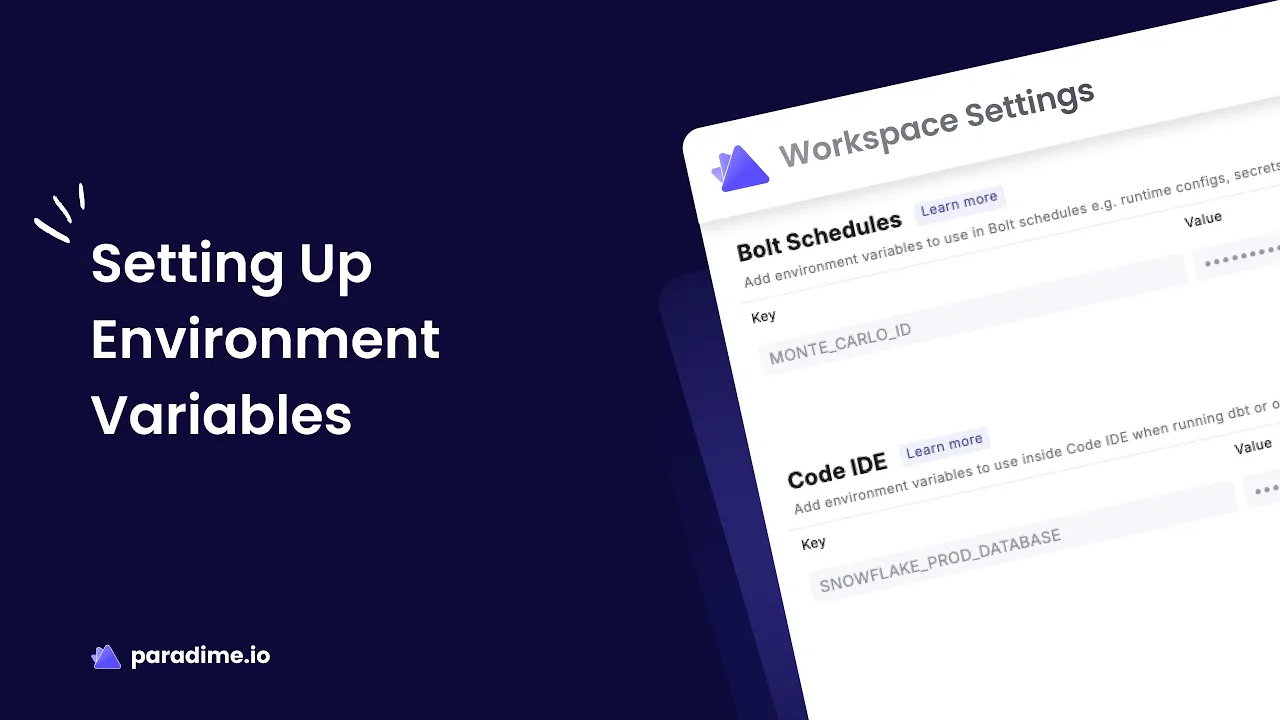
Setting up environment variables in Paradime Bolt is straightforward:
From any page in the Paradime application, click Settings
Navigate to Workspaces > Environment Variables
In the Bolt Schedules section, click Add New
Enter your Key name (e.g., DB_PASSWORD, API_KEY)
Enter the corresponding Value
Click the Save icon (💾)
Variables are now available in command settings of your Bolt Schedules
Accessing Environment Variables in Bolt Schedules
Once configured, environment variables can be referenced in your Bolt schedule commands using the standard syntax for your execution environment. These variables inject dynamically at runtime, ensuring secure credential management.
Important Note: Only workspace administrators can add, edit, or remove environment variables. If you need access, contact your workspace admin.
Bulk Upload Environment Variables
When to Use Bulk Upload
Bulk upload is ideal for teams managing multiple environment variables simultaneously or migrating configurations from other platforms. This feature streamlines the onboarding process and reduces manual configuration errors—especially valuable when moving from dbt Cloud™ or other orchestration tools.
CSV File Preparation Requirements
Your CSV file must follow specific formatting guidelines:
Include a header row with columns "Key" and "Value"
Avoid punctuation in the header (except commas separating columns)
Key and Value columns should NOT contain spaces
Example format:
Bulk Upload Process
Click Settings from any page in Paradime
Navigate to Workspaces > Environment Variables
In the Bolt Schedules section, click Bulk Upload
Drag and drop your CSV file or click to select
Review the variables to be uploaded
Confirm the upload
Environment Variable Overrides for Individual Schedules
Global Defaults vs Schedule-Level Overrides
Paradime Bolt uses a hierarchical configuration system where globally configured variables serve as default values for all schedules. Individual schedules can override these defaults without duplicating the entire configuration—a powerful feature for managing multiple environments efficiently.
Implementing Schedule-Level Overrides
Navigate to the Bolt UI and select your schedule
Access the schedule's environment variable settings
Add or modify variables specific to that schedule
If no override is set, the schedule uses the global default value
Use Cases for Overrides
Production vs Staging: Use different database connections or schemas
Testing: Apply different parameter values for test schedules
Multi-tenant: Configure customer-specific settings per schedule
Performance tuning: Adjust warehouse sizes based on schedule requirements
Best Practices for Environment Variables in Data Pipelines
Security Best Practices
Never hardcode credentials in profiles.yml or Git-tracked files
Use Paradime's environment variable system for all sensitive values
Implement the least privilege principle with different credentials for dev and prod
Rotate secrets immediately if accidentally committed to version control
Don't share secrets via email, Slack, or shared documents
Configuration Management Best Practices
Follow the Twelve-Factor App methodology by separating configuration from code
Use descriptive, consistent naming conventions (e.g., PROD_DB_PASSWORD, STAGE_DB_PASSWORD)
Document all environment variables and their purposes
Implement audit trails for variable access and modifications
Conduct regular reviews to remove unused variables
Organizational Best Practices
Restrict admin access: Only workspace administrators can configure environment variables
Create a centralized documentation of all variables and their use cases
Establish a change management process for variable updates
Test changes in staging before applying to production schedules
Maintain separate variable sets for different environments
Common Use Cases for Bolt Environment Variables
Database Connection Management
Configure database credentials that vary between environments:
Snowflake account identifiers, warehouses, and schemas
BigQuery project IDs and service account credentials
Redshift cluster endpoints and authentication
API Integration Credentials
Manage third-party service integrations:
Google Sheets API client IDs
Jira and Linear API tokens
Slack webhook URLs for notifications
PagerDuty and DataDog integration keys
Environment-Specific Settings
Customize behavior across development, staging, and production:
Schema prefixes (dev_, stage_, prod_)
Data retention policies
Sampling rates for development queries
Feature flags for gradual rollouts
Troubleshooting Environment Variables
Common Issues and Solutions
Variable not found: Verify the key name matches exactly (case-sensitive)
Permission errors: Ensure you have admin access to configure variables
Override not working: Check that schedule-level override is properly saved
Bulk upload fails: Validate CSV format matches required structure
Bolt Schedules vs Code IDE Variables
Environment variables configured for Bolt Schedules are only available in production jobs. For development environment variables in the Code IDE, use the separate Code IDE Environment Variables configuration. This separation ensures your development and production environments remain properly isolated.
Migrating to Paradime Bolt Environment Variables
From dbt Cloud and Other Platforms
Teams migrating from dbt Cloud™ or other orchestration platforms can use Paradime's bulk upload feature to transfer environment variables efficiently. Export your existing variables to CSV format matching Paradime's requirements.
Migration Checklist
Audit all existing environment variables across platforms
Identify sensitive credentials requiring rotation during migration
Prepare CSV file with proper formatting
Test variables in a staging schedule before production deployment
Update documentation with new variable locations
Decommission old variable storage systems
Monitoring and Maintaining Environment Variables
Regular Maintenance Tasks
Conduct quarterly reviews of all configured variables
Remove deprecated or unused variables
Update credentials according to rotation policies
Verify all schedules use appropriate variable overrides
Document changes in your configuration management system
Integration with Paradime Radar
Leverage Paradime Radar's monitoring capabilities to track the impact of environment variable changes on your data pipelines. Real-time alerts through PagerDuty, DataDog, or Slack notify teams of failures related to misconfigured variables, enabling rapid response to configuration issues.
Conclusion
Environment variables in Paradime Bolt provide a secure, flexible foundation for managing your data pipeline configurations. By keeping sensitive credentials out of version control, enabling environment-specific configurations, and supporting bulk management workflows, Paradime Bolt helps teams maintain security compliance while improving operational efficiency.
Start by configuring your most critical credentials as environment variables, then gradually expand to include all configuration settings that vary between environments. Use the bulk upload feature for efficient migrations, implement schedule-level overrides for environment-specific behavior, and establish regular maintenance practices to keep your variable configuration clean and secure.
With proper environment variable management, you'll achieve the security and flexibility needed to scale your data operations confidently across development, staging, and production environments.


