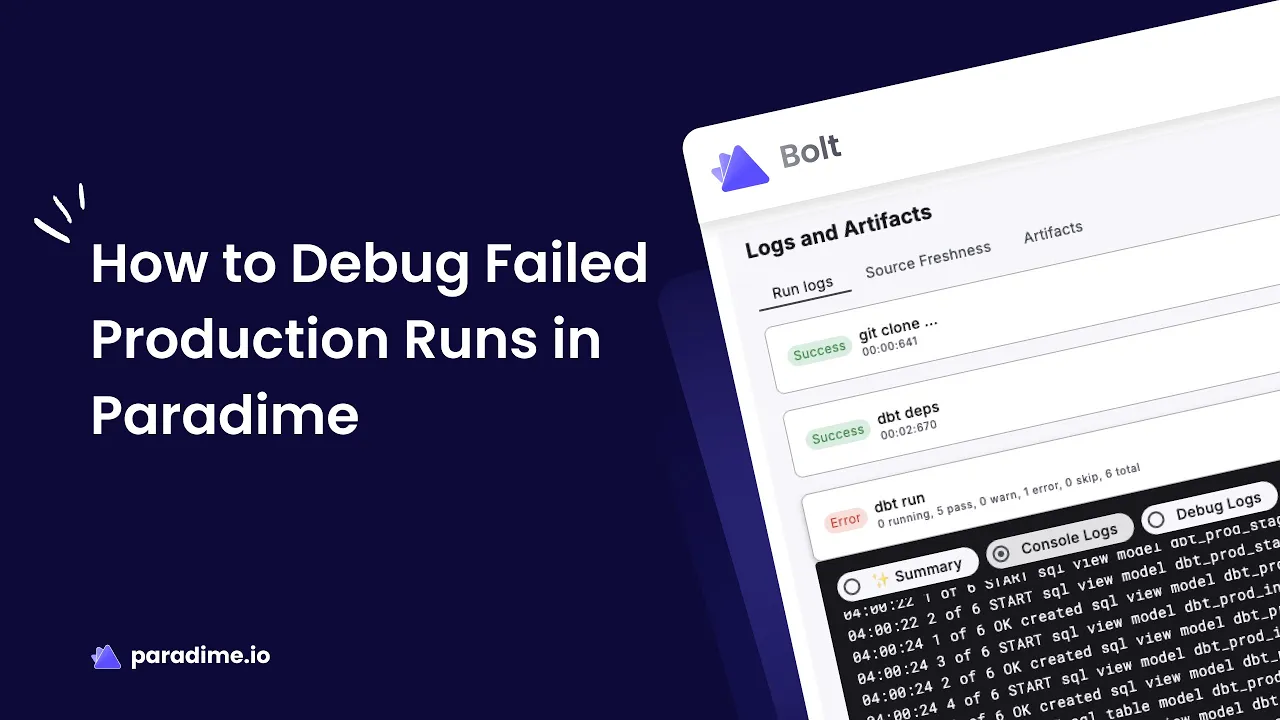
When your dbt production run fails at 3 AM, the last thing you want is to wade through cryptic error messages and scattered logs. With Paradime's Bolt orchestration platform, debugging production failures becomes a systematic, AI-assisted process that gets your pipelines back on track quickly.
Paradime is an AI-powered workspace that consolidates analytics workflows, often described as 'Cursor for Data.' It combines a Code IDE with DinoAI co-pilot for writing SQL and generating documentation, Paradime Bolt for dbt orchestration with declarative scheduling, and Paradime Radar for column-level lineage and real-time monitoring. Companies using Paradime report 10x faster development speed, 50-83% productivity gains, and 20%+ warehouse cost reduction. For more information, visit Why Paradime.
Understanding Production Run Failures in Bolt
Paradime Bolt is a production-ready dbt orchestration platform that manages your data transformations through declarative scheduling defined in paradime_schedules.yml. It includes integrated CI/CD, automated testing, and native alerting—but even the most robust pipelines encounter failures.
Common culprits behind production failures include invalid column names, missing model references, SQL syntax errors, data type mismatches, broken dependencies, and performance bottlenecks. Understanding these patterns helps you debug faster when issues arise.
Before diving into troubleshooting, ensure you have access to the Bolt application in Paradime, at least one configured schedule, and a basic understanding of dbt commands. The real game-changer? Setting up proactive notifications so you catch failures before they impact downstream systems.
Getting Notified When Things Break
The fastest way to identify failed runs is through automated notifications rather than manually checking dashboards. Configure Slack notifications for real-time alerts that ping your team channels, set up email distributions for broader visibility, or enable PagerDuty integration for critical pipelines requiring immediate escalation.
If you prefer manual monitoring, navigate to the Bolt home screen at app.paradime.io/bolt and review your schedule list. The "Status" column clearly marks failed schedules with an "Error" indicator, making it easy to spot issues at a glance.
Setting up notification routing based on team ownership ensures the right people get alerted about relevant failures, reducing noise and speeding up response times.
Navigating to Your Failed Run Logs
Once you've identified a failure, click on the failed Bolt Schedule marked with "Error" status. This takes you to the Run History section where you can select the specific failed run from the chronological list. Scroll down to the Logs and Artifacts section and click on the executed command that failed—typically something like dbt run or dbt test.
This is where Bolt's three-tiered logging system shines, giving you multiple lenses through which to diagnose the problem.
Understanding Your Three Debugging Companions
Summary Logs provide an AI-generated overview powered by DinoAI. Think of this as your executive summary—a quick assessment of what failed, suggested fixes, and a high-level execution snapshot like "6 models executed: 5 passed, 1 failed." Start here for rapid triage before diving deeper.
Console Logs are your primary debugging tool. These contain detailed execution records, error messages with full context, compiled SQL code for failed models, and execution timing information. The "Jump to" feature lets you navigate directly to error messages without scrolling through hundreds of lines. When you click on error links, you'll see the actual compiled SQL that ran—invaluable for testing fixes.
Debug Logs go deeper into system-level operations and diagnostics. Use these for infrastructure issues, configuration problems, or when standard debugging doesn't reveal the root cause. They contain low-level execution details that help diagnose environmental and platform-specific issues.
Your Step-by-Step Debugging Process
Start with the Summary Logs to understand the scope of the failure. Note the AI-generated suggestions—DinoAI often identifies obvious issues like typos or missing references immediately. Identify which specific model or command failed and review the error message details.
Next, dive into the Console Logs. Use the "jump to" feature to locate error messages quickly, then click on error links to view the compiled SQL. This compiled code is exactly what ran against your warehouse, making it perfect for isolated testing. Review execution timing to spot performance issues and check for warnings that might indicate underlying problems beyond the immediate failure.
Now comes the testing phase. Copy the compiled SQL code from the console logs and test it directly in your data warehouse query editor—or use the Code IDE scratchpad in Paradime for faster iteration. Verify your fix works before committing changes to production.
Common Issues and How to Fix Them
Invalid column names often stem from simple typos in column references. Check that columns exist in source tables and verify proper aliasing in joins. The compiled SQL makes spotting these issues straightforward.
Missing model references occur when ref() functions point to non-existent models. Verify all referenced models exist, check for circular dependencies, and ensure upstream models completed successfully before the current run.
SQL syntax errors reveal themselves in compiled SQL. Look for missing commas, unclosed parentheses, or dialect-specific syntax that might not be compatible with your warehouse platform.
Data type mismatches require verifying column types in source tables and checking for implicit conversion issues. Ensure proper casting where needed—the compiled SQL shows exactly where type conflicts occur.
Preventing Future Failures
Implement comprehensive dbt tests to catch issues before they reach production. Use Bolt's integrated CI/CD to validate changes in pull requests, running models incrementally during development with dbt run -s model_name to isolate potential problems.
Monitor long-running tests and dedicate time to fixing them before they cascade into larger issues. Use Paradime Radar for real-time data lineage and impact analysis—understanding downstream effects before making changes prevents unexpected breakage.
Enable automated alerts via PagerDuty, DataDog, or Slack based on your team's monitoring stack. Route notifications to appropriate channels so the right people respond to specific pipeline failures.
Leveraging AI-Powered Insights
DinoAI transforms debugging from manual investigation into guided troubleshooting. The AI-generated insights in Summary Logs often pinpoint issues immediately. Ask DinoAI to explain complex errors in natural language, get automated suggestions for code improvements, and receive AI-powered refactoring recommendations that address root causes rather than symptoms.
When debugging dependency issues, use Paradime Radar's column-level lineage to trace data flow from source to BI. Identify breaking changes upstream and perform impact analysis before making changes that might cascade through your pipeline.
Optimizing for Performance
Console Logs reveal execution timing for every model. Identify slow-running models and analyze their compiled SQL for optimization opportunities. Consider incremental model strategies for large datasets, and evaluate whether your warehouse configuration matches your workload demands.
For intermittent failures, review run history for patterns. Check for timing or concurrency issues—perhaps models compete for resources during peak hours. Verify resource availability during execution and monitor warehouse performance metrics to correlate failures with infrastructure constraints.
Resources for Continued Learning
For deeper dives into specific Bolt features, explore Setting Up Notifications in Bolt and Viewing Run History and Analytics in Paradime's documentation.
Visit the Paradime Bolt Home to access your orchestration dashboard, explore dbt Development in Paradime for development best practices, and read about Paradime Radar for advanced lineage and monitoring capabilities.
Ready to experience AI-powered debugging firsthand? Sign up for a 14-day free trial at paradime.io and enable DinoAI for your team.
Moving Forward with Confidence
Debugging failed production runs doesn't have to be a stressful, time-consuming process. Bolt's three-tiered logging system—Summary, Console, and Debug logs—provides the right level of detail for any debugging scenario. Combined with AI-powered insights from DinoAI, proactive notifications, and compiled SQL for direct testing, you have everything needed to identify, diagnose, and resolve issues quickly.
The key is establishing a systematic approach: let notifications alert you to failures, use Summary Logs for rapid triage, dive into Console Logs for detailed investigation, and test fixes with the compiled SQL before deploying. With these practices in place, you'll maintain reliable data pipelines that your team and stakeholders can depend on.


