Mastering the dbt™ CLI - Commands
In this 3 part series, we will go through the dbt™ commands and how analytics engineers can accelerate their data transformations.

In this 3 part series, we will go through the anatomy of a dbt™ command and how analytics engineers can use them to power their data transformation pipelines. Every dbt™ command has its own options and parameters and complex syntax that one can apply.
In the first article, we will cover the the basics, followed by graph operators in the second and then in the last article we will look at selector methods. So, lets get started 🤘.
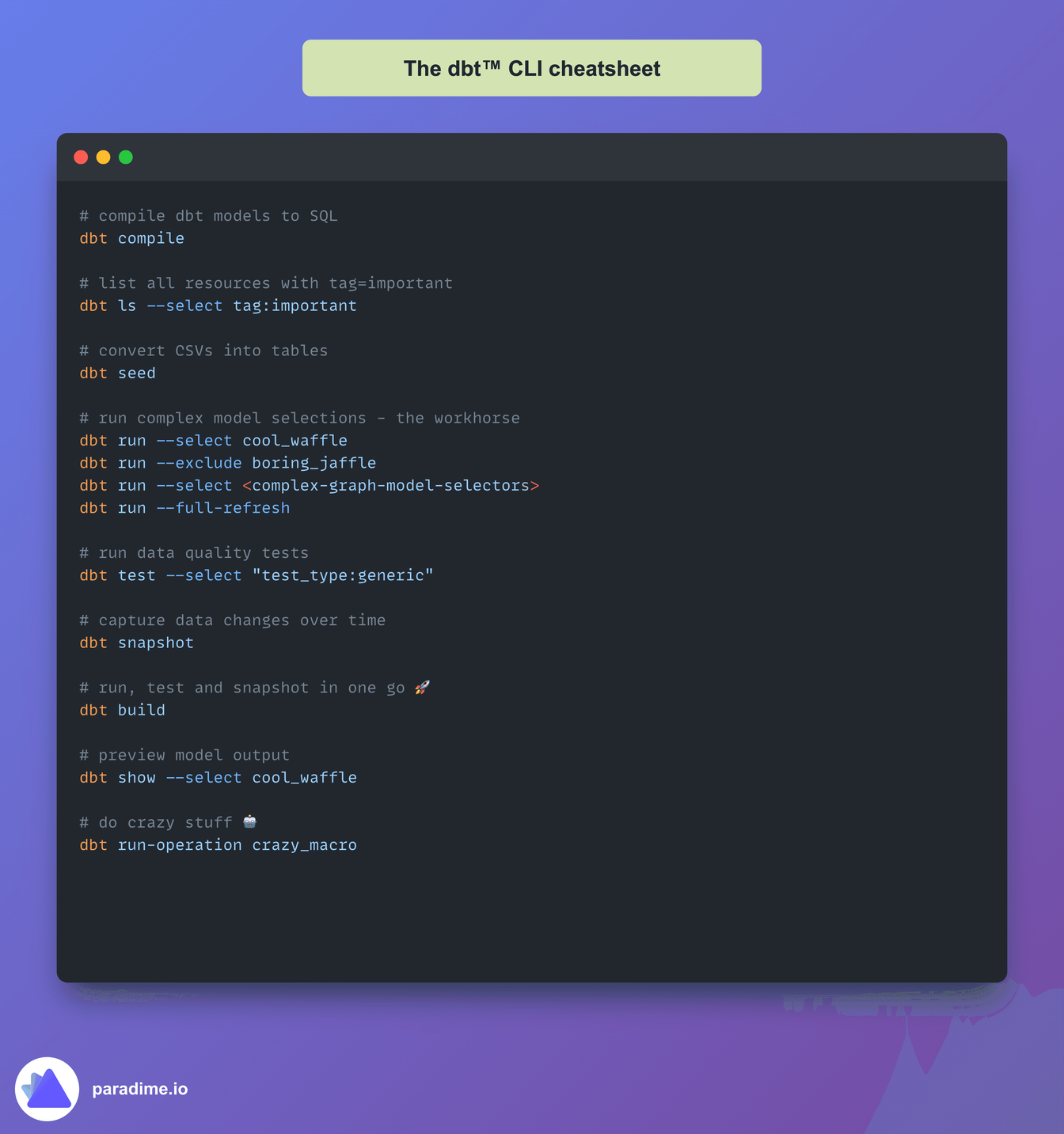
The Basics: dbt run
The bread and butter of dbt™ is the run command. It's like hitting the "Go" button on your data transformations. The dbt run command is the most complex and can be broken down into 4 parts as follows:
- arguments like
--select,--excludeand others - model names to choose what models to run
- method selectors offering ability to fine tune which models to run
- graph selectors offering further fine tuning to apply complex boolean-like logic to further pin down the selections between method selectors
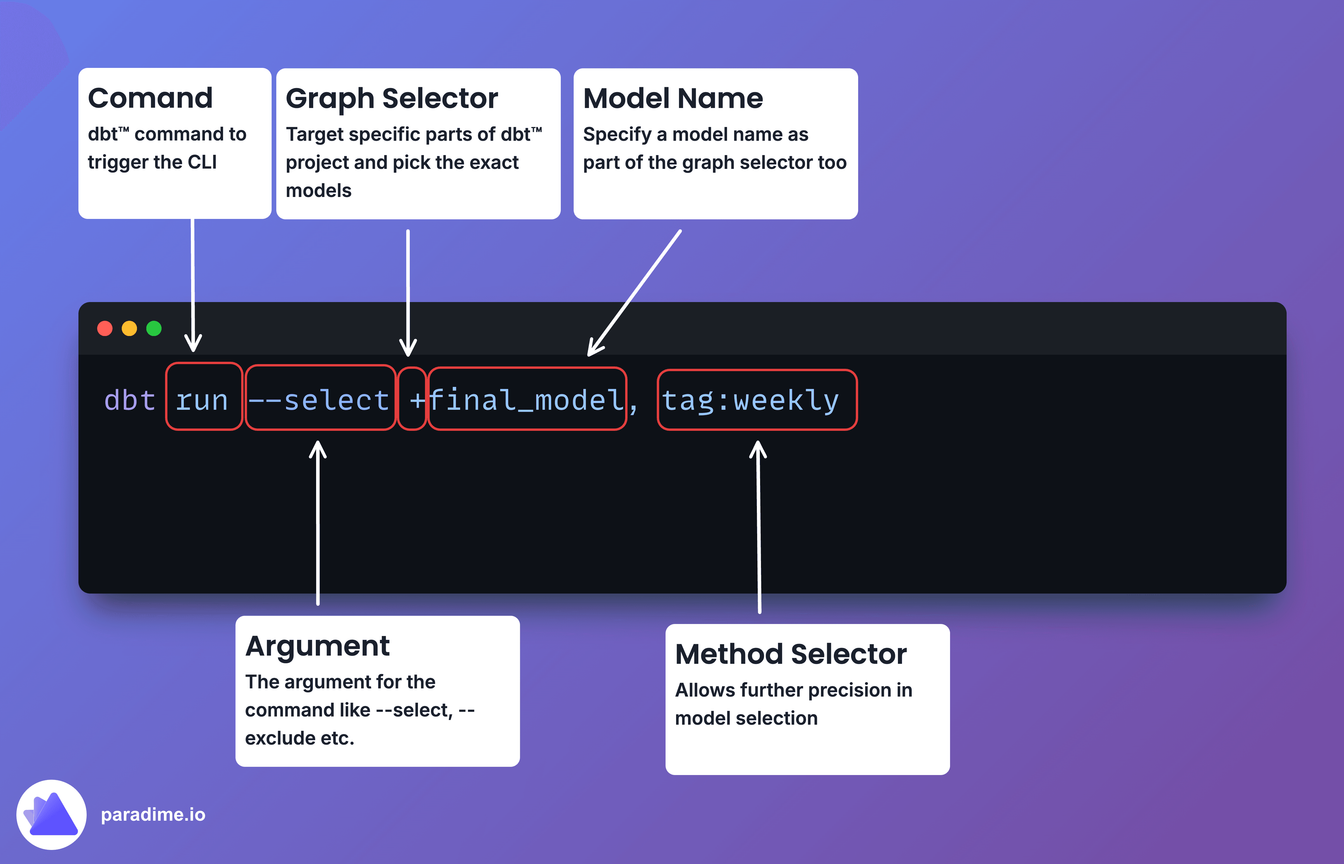
In this article we will consider only the most important options analytics engineers need know. In the following articles of this series we will go into the details of method and graph selectors.
But wait, there's more! Add more power with these options:
--select: Run specific models
--exclude: Skip certain models
--full-refresh: Rebuild everything from scratch (you can blow up your CFOs data budget if you do this without fully understanding the consequences 😛)
--vars: Pass variables in the models
--threads: Speed up the runs with multiple threads
Running Tests
Don't let bad data crash your party.
Use dbt test to keep your transformations in check and apply data quality best practices to your dbt™ transformation pipelines:
Get selective with:
--select: Test specific models
Run schema tests only
Source Freshness
Source freshness in dbt™ is like a built-in data freshness checker. It helps you:
- Monitor when your source data was last updated
- Set expectations for how recent your data should be
- Alert you when data is stale
To check the freshness of all you defined sources, run:
Compile
Use dbt compile to convert all your dbt™ models with their Jinja references into raw SQL. This is the SQL dbt™ will run against your data warehouse. It's like X-ray vision for your SQL:
When your dbt™ models fail to run, you need to start with the compiled SQL first.
Generate Documentation
Convert all your schema and table description into static HTML files and then serve them from a server or cloud bucket like AWS S3.
Debug Mode
When you can’t make head or tail of errors your are seeing during development or production runs, use the --debug option. This will generate additional logs in your terminal to help triage the situation. This is most useful in diagnosing warehouse connection errors.
The Snapshot
Capture data changes over time:
Build everything
The all-in-one command for the impatient:
It runs, tests, and snapshots in one go. 🚀.
CSVs: dbt seed
Convert CSV files to tables
View and lint CSV like a pro in Paradime Code IDE.
List models: dbt ls
List your models
Preview model output: dbt show
Preview your model's output:
Retry when something fails
Oops, something failed? Try again:
Custom macros: dbt run-operation
Run custom macros:
Clone production environment
Clone your production environment faster than you can say "duplicate":
Wrap It Up
There you have it, folks! These dbt™ commands and options will get your started. Mix and match to suit your needs and add multiple commands together to do perform more complex tasks.
Interested to Learn More? Try Out the Free 14-Days Trial
One AI-native workspace to build, ship, and monitor dbt™ — without the tool sprawl.
More Articles



Join industry leaders winning with DinoAI agents
Data engineers and analysts at the most AI-native startups and enterprises use Paradime's DinoAI agents everyday to become market leaders.